
Account Security Settings: 2FA, Your Backup Key, Fund Password and Avoiding Scams
Two-factor authentication, your backup key, your fund password and how to spot scams: set these up as soon as you register.


1. Two-Factor Authentication (2FA)
2FA is short for two-factor authentication: on top of logging in, there is a second verification step. On MC Markets, actions that involve your funds or security, such as withdrawals and changes to your security settings, have to pass this check first. Even if someone gets into your account, they cannot withdraw or change your security settings without passing that second check.
MC Markets 2FA has three parts: email verification, your fund password and Google Authenticator. You set them all up in Security Center. Once all three are in place, the Security Level at the top of Security Center shows High; without Google Authenticator it shows Low.
When 2FA is required:
- Withdrawals to a new address, UID transfers and fiat withdrawals
- Linking a wallet or a withdrawal address
- Linking an email address
- Setting or resetting your fund password
- Linking or resetting Google Authenticator
- Creating or managing API keys
How to set it up:
- Log in and go to User Center > Security Center
- Next to Google Authenticator, tap Bind and complete a security verification first
- Scan the QR code on the page with the Google Authenticator app
- Enter the 6-digit code generated by the app to complete the setup
- Be sure to back up the key shown on the page (tap Copy Key). You'll need it to restore Google Authenticator if you change or lose your phone
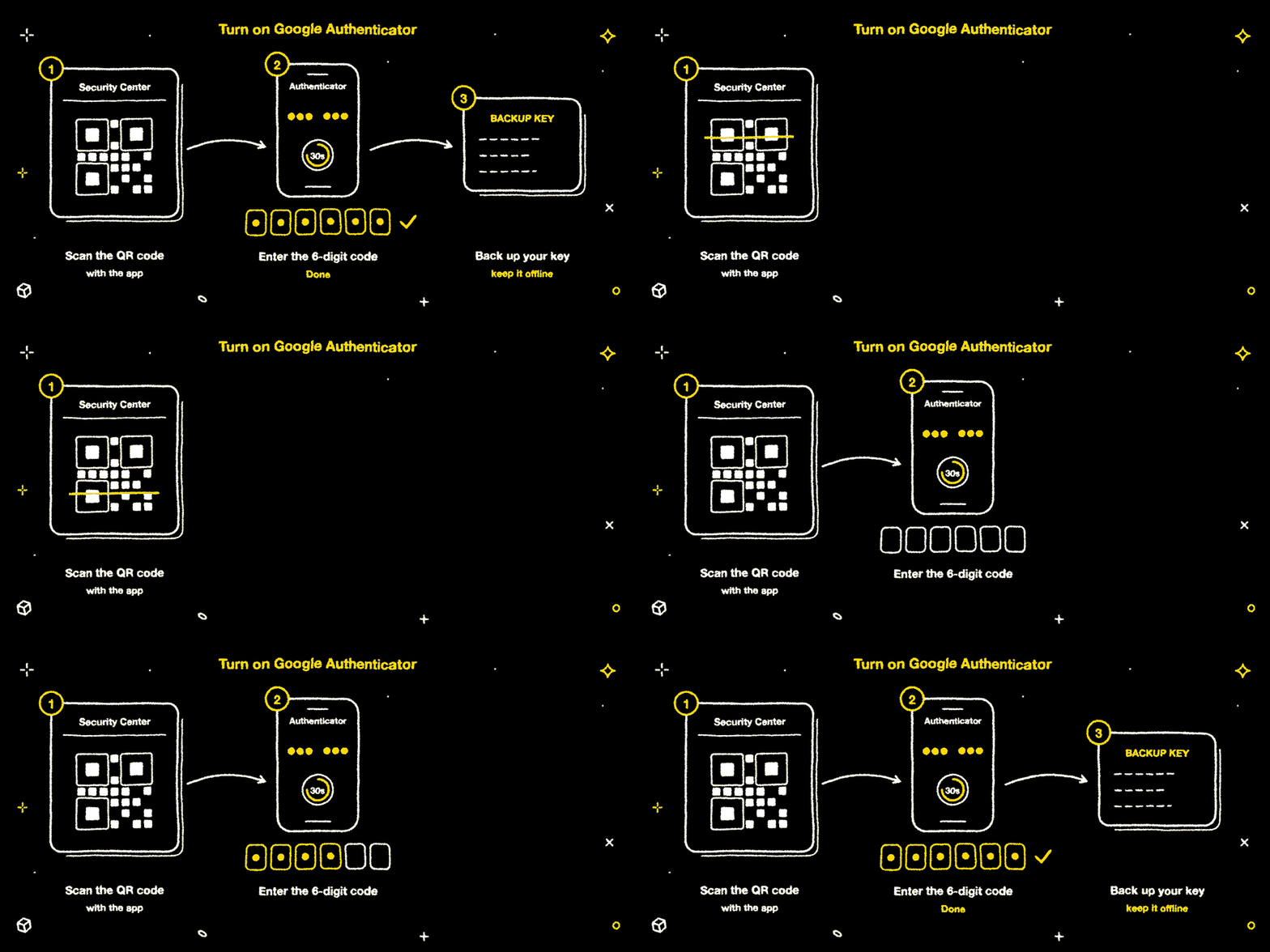
Verification code rules:
| Rule | Details |
|---|---|
| Code validity | 30 seconds; a new code appears automatically when it expires |
| Lockout after failed attempts | 5 wrong codes in a row lock verification for 15 minutes |
2. Your Backup Key
When you set up Google Authenticator, the page shows a key (the same one inside the QR code).
- Back it up offline: write it down on paper or keep it in a password manager
- If you change or lose your phone, add it again in Google Authenticator on your new phone using this key
- If you have lost the key too, tap "Change method" in the Security Verification window to verify another way, and contact customer support if none of your methods work

3. Resetting Google Authenticator
- In Security Center, tap Reset next to Google Authenticator. After the security verification, scan the new QR code to link the app again
- For 24 hours after a reset, you cannot withdraw or add withdrawal addresses, and you cannot reset it again
4. Switching Verification Methods
If you can't use your current verification method, tap "Change method" in the Security Verification window to switch to another set of methods. If there is nothing left to switch to, the window shows "Please contact Customer Support for assistance". Tap Contact Support and send the form.
5. Fund Password
Your fund password is a separate password that protects actions involving your assets, and it is different from your login password. Sensitive actions such as withdrawals ask for your fund password as a second confirmation.
| Rule | Details |
|---|---|
| Requirements | 8–16 characters, including uppercase and lowercase letters, numbers and special characters |
| After a change or reset | For 24 hours, you cannot withdraw or add withdrawal addresses |
| Forgotten password | In the Change Password window, tap "Forgot your Fund Password?" and complete security verification to reset it |

6. Withdrawal Address Management
When you withdraw, you can pick an address from your saved list or enter a new one; a new address you type in needs to pass security verification first.
- Go to User Center > Security Center > Withdrawal address management, tap Set, then tap Add Withdrawal Address. Adding an address requires security verification
- When you add an address, you can choose how long it stays valid: indefinitely, 30 days or 3 days. Addresses with a time limit are deleted automatically when they expire
- For 24 hours after a 2FA change, you cannot add new withdrawal addresses
- Add the addresses you use often in advance, so you don't have to wait when you need to withdraw urgently
7. Staying Safe from Scams
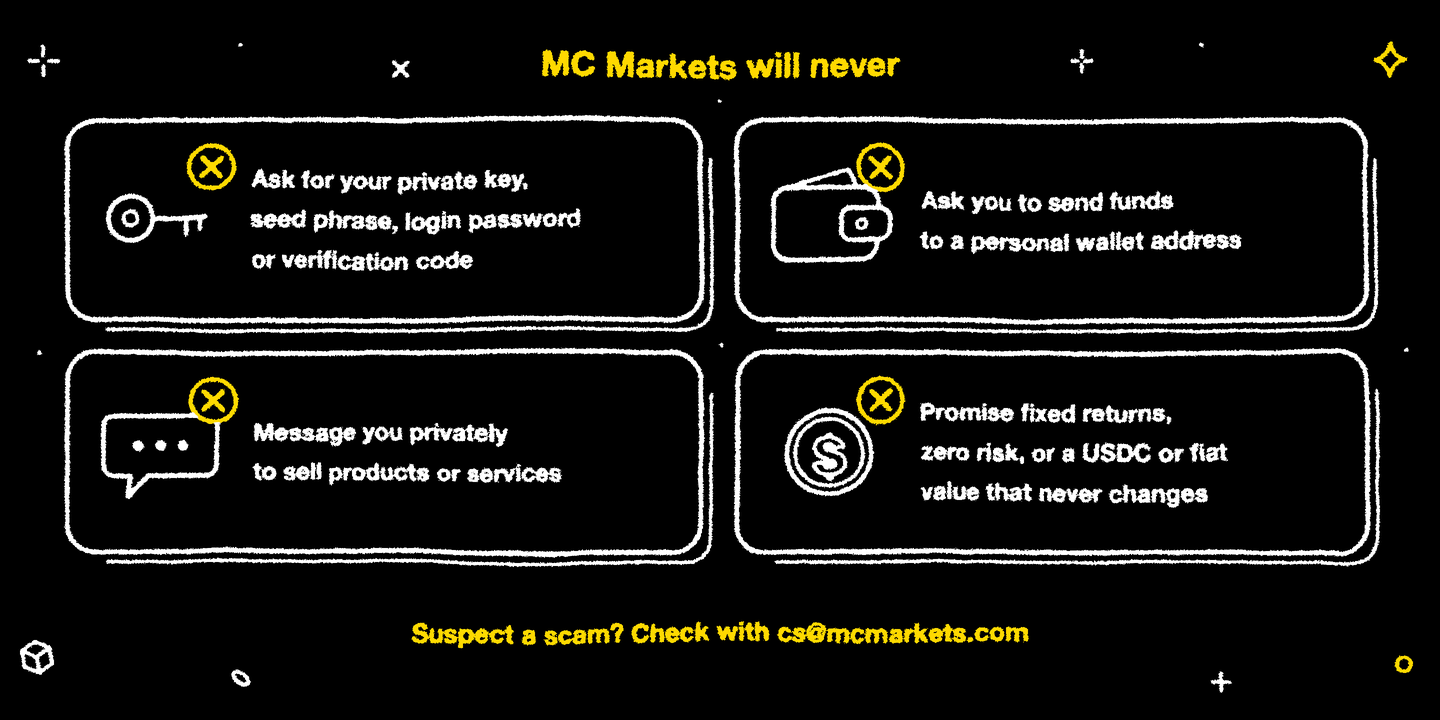
MC Markets will never:
- Ask for your private key, seed phrase, login password or verification code
- Ask you to transfer funds to a personal wallet address
- Contact you by private message to sell products or services
- Promise fixed returns, zero risk, or that the value of USDC or fiat currency will never change
If anyone does any of these things in the name of MC Markets, it is a scam. Verify it through official channels straight away.
Security checklist:
- Avoid making large trades on public networks
- Give your fund password, and the email and Google accounts you log in with, their own passwords that you don't reuse anywhere else
- Check your Security Center settings regularly and keep an eye on Last Login Time under User Center > Overview
- If you suspect a scam, contact cs@mcmarkets.com right away to verify
- When the MC Markets mobile app launches, download details will be announced on our website and official channels. Only download it from official channels
Official channels: the current official website, the official Telegram (@mcmarketsglobal) and the official X account (@mcmarketsX).
Further Reading
- Getting to Know MC Markets: The Platform, Its Five Product Lines and Where to Start
- Account Structure and Fund Transfers: Moving Funds Between Spot and Perps, and Subscribing to Earn and User Vaults
- How to Verify MC Markets' Reserves Yourself? A Hands-On Merkle Tree and Arbiscan Guide
Risk Warning
Security settings lower the risk of your account being misused, but they cannot replace your own care: never share your private key, seed phrase, passwords or verification codes with anyone, and back up your Google Authenticator key offline. Trading digital assets involves high risk. Only use funds you can afford to lose.
Disclaimer
This article is for general informational and educational purposes only and may not apply to the regulations or products available in your region. It does not constitute investment, financial, or trading advice of any kind, nor an offer, solicitation, or recommendation to buy, sell, or hold any digital asset.
Trading digital assets involves high risk, prices can be extremely volatile, and you may lose all of your invested capital. Leveraged trading can result in losses exceeding your initial deposit. Past performance is not indicative of, and does not guarantee, future results.
You should make investment decisions independently based on your own financial situation and risk tolerance, and consult a licensed professional adviser where necessary. While we strive to ensure the accuracy of the information in this article, MC Markets accepts no liability for any errors or omissions, or for any loss you may suffer from using or relying on this information.
No more